ZArchiver
- 4.2
- Rating
- 100.00M
- Installs
- Free
- Price

 Analysis by App-foxy
If you have ever received a compressed file on your phone and wondered what to do with it, ZArchiver is the kind of tool I would suggest trying first. It is a file-archive app from ZDevs, aimed at opening and managing compressed folders without making the process feel like a desktop task. I found its interface more practical than attractive, but that is part of its appeal: it focuses on getting a file opened, extracted, or compressed with as few distractions as possible.
The app is free and rated for Everyone, so it is approachable for ordinary file-management jobs as well as more technical workflows. Its strong adoption is also easy to understand: it has passed 100 million installs and holds an average rating of 4.1 from roughly 1.4 million ratings. Those figures do not replace personal testing, but they do show that this is a familiar utility rather than an obscure experiment.
What to expect when you open ZArchiver
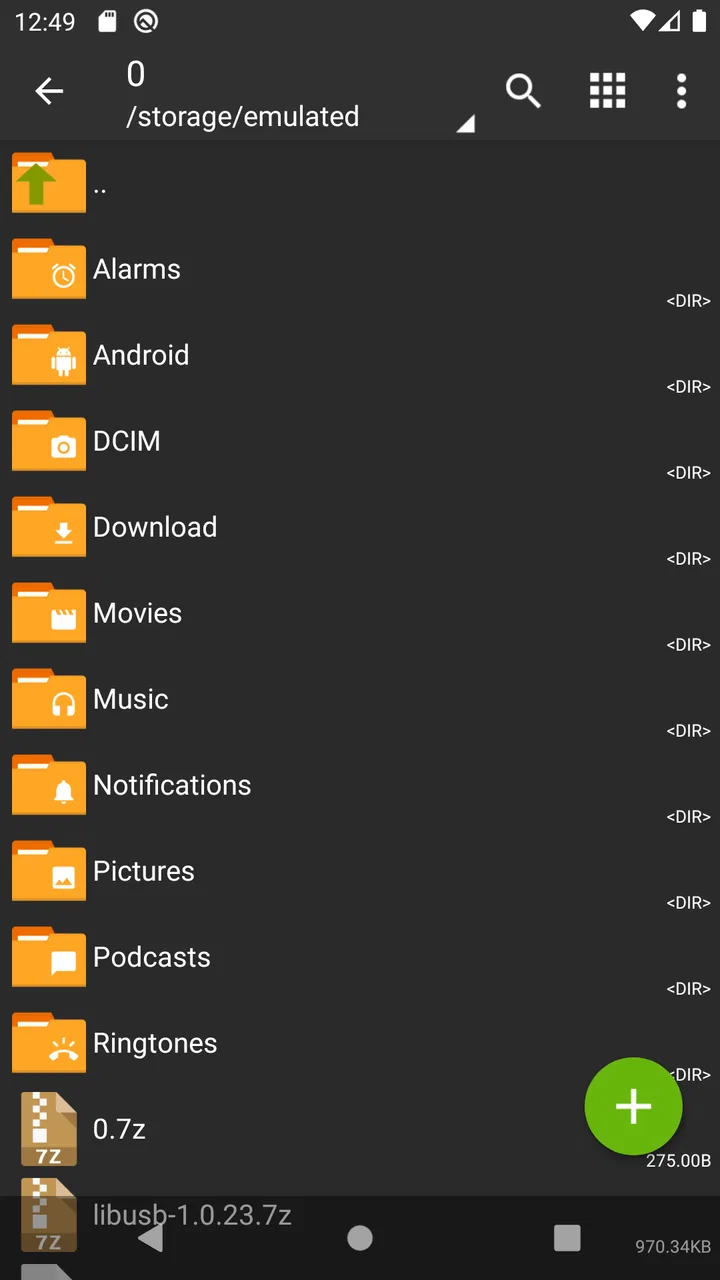
My first impression was that ZArchiver behaves more like a compact file manager than a polished cloud-storage app. You browse folders, select an archive or regular file, and then choose an action from the menu. That approach is useful because the app does not try to hide the basic file structure behind large buttons or a gallery-style layout. If you already understand folders, the learning curve is short.
You May Also Like

 AccuWeather: Weather Radar
AccuWeather Review: A Quick, Clear Forecast for Everyday Decisions
For everyday plans, the best forecast is the one you can understand quickly. AccuWeather makes rain timing, radar, and local conditions easy to act on, with a few trade-offs.

 Hill Climb Racing
Why Hill Climb Racing Still Turns Crashes Into One More Run
A tiny car, a bumpy hill and one more upgrade: Hill Climb Racing keeps resurfacing because its simple chaos makes every near-miss feel personal.

 AliExpress - Shopping App
AliExpress Makes Global Shopping Feel Personal, but Shoppers Bear the Risk
AliExpress turns a global marketplace into a pocket-sized discovery engine. Its reach is useful, its shopping loop compelling, and its trade-offs easy to miss.

 Lords Mobile: Kingdom Wars
Lords Mobile Is a Kingdom-Building Routine, Not a Quick Match
A case-by-case verdict on the building, battles, device demands, and social commitments that make Lords Mobile rewarding for some players and exhausting for others.

 PDF Scanner app - TapScanner
TapScanner Makes Paperwork Easier to Capture, Check, and Share
TapScanner makes scanning with a phone feel less like a rescue operation and more like a dependable step in getting work done. Its capture tools are useful, though not flawless.

 Block Blast!
 Shows How Much a Puzzle Game Can Leave Out
A quiet grid game shows why puzzle players increasingly value instant clarity, repeatable skill and low-pressure play—and where the genre still needs to catch up.
More From Our News Desk
View All News


The trade-off is that a new Android user may initially find the screen busy. Names, folders, archive files, and action menus appear together, so it helps to slow down and identify the file you actually want before tapping. I would not call the design confusing once you understand the pattern, but it is more functional than welcoming.
The central job is straightforward: use the app to inspect compressed archives, extract their contents, or create an archive from selected files. That makes it useful for downloaded documents, groups of photos, project folders, backups, and files shared by another person. It is also handy when a website or messaging service sends several files together in one package.
ZDevs has kept the app focused on this practical role. You are not opening it to edit photos, synchronize a library, or replace a full desktop file manager. You are opening it because a file is packed into an archive or because you want to bundle files before sending them somewhere else.
Who will benefit most
I think ZArchiver suits people who regularly move files between a phone and a computer, download compressed folders, or receive archive files through messaging apps. Students can use it to unpack a course folder, while a photographer might use it to inspect a batch of images without extracting everything immediately. It can also be useful for anyone who wants to keep several related documents together in a single archive.
It is less suitable if you want a highly visual experience or if your main goal is cloud organization. A cloud-storage app is usually better for browsing synchronized files, sharing links, and keeping a live copy across devices. ZArchiver is about local file handling. It can complement those services, but it is not a replacement for them.
From installation to your first useful result
Before I judge a file utility, I look at whether it makes the important choice clear: what I am opening and where the result will go. With ZArchiver, the safest way to build confidence is to begin with a file you recognize and watch each step rather than treating archive handling as a one-tap shortcut. That also sets up the next section’s practical route from installation to a useful result.
Start by locating the file, not by exploring every menu
After installing the app, I recommend beginning with one archive you already need to open. This gives you a clear target and prevents the first session from turning into aimless browsing. Look through the folders shown in the main file view and find the location where the file was saved. Download folders are a common starting point, but the important idea is to follow the actual location of your file rather than assume every download is in the same place.
When you see the archive, tap it to reveal the available actions. The wording may vary with the file type and the action you choose, but the useful distinction is between viewing what is inside and extracting the contents. If you only want to check whether the archive contains the right material, inspect it first. If you need to use the files in another app, extract them into a folder you can find again.
The best first habit is to create a clearly named destination folder before extracting important files. This small step prevents a common problem: opening an archive successfully but then losing its contents among unrelated downloads. A folder named for the project, class, trip, or sender makes the result much easier to locate later.
Your first successful action: extract one archive carefully
For a first test, choose a nonessential archive and extract it to a new folder. Watch the destination shown in the action screen rather than accepting it automatically if you are unsure where the files will go. Once the operation finishes, open the destination folder and confirm that the expected files are there. This simple check teaches you the complete workflow: locate, select, choose an action, pick a destination, and verify.
That verification step matters more than it sounds. An archive can contain several nested folders, and the files you want may not appear directly at the top level. If you see only one folder after extraction, open it before assuming something went wrong. Many archive creators preserve their original folder structure, which is useful for organization but can make the result look incomplete at first glance.
If the archive contains documents, I usually open one immediately with the relevant document app. If it contains images, I check the destination folder through a gallery or file browser. This confirms not only that extraction worked, but also that the files are in a place other apps can reach.
Creating an archive is useful for sending a group of files
The reverse workflow is just as practical. Select several related files or a folder, choose the option to create an archive, and give the result a name that explains its contents. I prefer names that include the subject and purpose rather than vague labels such as “new archive.” Good naming becomes especially valuable when several compressed files accumulate in the same folder.
Before creating the archive, check that you selected the folder or files you intended to include. It is easy to select a parent folder when you meant to choose only a few items, or to leave out a file that was stored elsewhere. For a small group of documents, I find it safer to gather them into one temporary folder first and archive that folder. It reduces selection mistakes and keeps the internal structure tidy for the recipient.
Compression is not automatically the best way to send every file. A single photo may be easier to share directly, and a cloud link may be more convenient for a large collection. ZArchiver becomes most useful when the files belong together and the recipient benefits from downloading one package rather than many separate items.
Common confusion around archive actions
The most frequent beginner mistake is confusing “open” with “extract.” Opening or viewing an archive lets you inspect its contents, while extracting creates ordinary files that other apps can use. If a document appears in the archive but cannot be edited from its current view, extract it first and then open the extracted copy in a suitable editor.
Another point of friction is destination choice. The app gives you control over where files go, which is helpful, but that control means you need to pay attention. If you extract into a crowded folder, the result may be difficult to identify. If you extract into a folder with the same name as an earlier attempt, you may end up with duplicate-looking material and wonder which copy is current.
Archive names can also be misleading. A file may have a familiar name but contain folders, images, documents, or a mixture of all three. I treat the archive as a container rather than assuming its contents from the filename. Inspecting it before extraction is a quick way to avoid filling storage with material you did not actually need.
Handling passwords and protected archives
Some archives require a password. When that happens, the important thing is to use the password supplied by the person or service that created the file; repeatedly guessing will not make the archive accessible. If the password is correct but the contents still do not open as expected, check that you are working with the complete archive and not a partial download.
This is one area where a file manager cannot solve the underlying problem for you. ZArchiver can provide the workflow for opening a protected archive, but it cannot recover a password you do not have. I would also avoid saving sensitive extracted files in a folder that is routinely shared or backed up unless you understand how that other service handles them.
Useful habits for larger or repeated workflows
For repeated work, I recommend separating temporary extraction folders from folders meant for long-term storage. Archives are excellent for transport, but extracted files are easier to edit and use. Keeping both versions without a naming plan can waste space and create uncertainty about which copy should be changed.
A second useful habit is to inspect the archive before extracting a large collection. This lets you decide whether you need everything or only a particular subfolder. Extracting only what you need can save time and reduce clutter, especially when an archive contains several unrelated materials bundled together.
A third tip is to use a consistent naming pattern for archives you create. Include the subject and a simple description of the contents. This is more valuable than it sounds when you later search through downloads or attach a file to an email. The app gives you the file operation; your naming system provides the organization around it.
Where it stands beside the usual alternatives
Compared with a basic file manager, ZArchiver gives compressed files a more central role. A standard file manager may let you browse folders and perform simple archive actions, but the experience can vary considerably between phones. ZArchiver feels more deliberate when the job is specifically opening or creating archives.
Compared with desktop archive software, it is naturally more convenient for files already on a phone, but less comfortable for extensive sorting or large-scale batch work. A computer offers a larger screen and easier drag-and-drop control. I would choose ZArchiver for a quick mobile task, not for reorganizing an entire archive collection.
Compared with cloud-storage apps, the difference is even clearer. Cloud services are better when synchronization, sharing, or remote access is the priority. ZArchiver is better when the archive is already on the device and you need direct control over its contents. Using the two together can make sense: download an archive, unpack the needed files locally, then move the finished material into your preferred storage service.
Limitations I noticed in everyday use
The interface is not designed to guide every first-time user with large explanations. You have to understand basic file concepts such as folders, destinations, and extracted copies. That is reasonable for a utility, but it means someone unfamiliar with Android storage may need a little patience during the first session.
It also does not remove the need for file housekeeping. If you extract the same archive several times, create duplicate packages, or leave temporary folders behind, the app will not decide which copy you meant to keep. The control is useful, but it puts responsibility on you.
I would skip it if you only need occasional access to a single archive and your existing file manager already handles that task comfortably. Installing another tool may not add enough value in that situation. I would also choose a desktop solution for complicated archive maintenance, extensive renaming, or work where seeing many files at once is important.
What to do after the first success
Once you have extracted one archive successfully, try the reverse process with a small folder of files. This teaches you how the app packages material and helps you understand what the recipient will see. Open the resulting archive again and check its internal structure before sending it. If the folder layout is confusing, go back and create a cleaner package.
For regular use, keep a simple routine: inspect before extracting, choose a recognizable destination, verify the result, and remove temporary duplicates when you are finished. Those four steps prevent most of the frustration I associate with mobile archive work.
ZArchiver is not trying to be a complete digital workspace, and I think that focus works in its favor. It is a free Tools app from ZDevs, released on January 24, 2012, with current version 1.0.10, and its long presence helps explain why it feels built around practical file tasks rather than presentation. The age rating is Everyone, making it suitable for general users who need this kind of utility.
My recommendation is simple: if you regularly receive compressed files or need to bundle folders on your phone, ZArchiver is worth keeping installed. Start with one harmless archive, learn where the extracted files go, and then build a naming and folder routine that suits you. It is not the prettiest option and it will not replace cloud storage or a desktop archive manager, but for direct, local control over compressed files, I found it dependable and refreshingly focused.
FAQs for ZArchiver
01What is ZArchiver and what are its main features?
ZArchiver is a powerful file management tool designed for Android devices that allows users to create, decompress, and manage archives in various formats, such as ZIP, RAR, 7z, and more. It supports multi-threading, UTF-8/UTF-16 file names, and password-protected archives, making it a versatile choice for managing compressed files on mobile devices.
02Is ZArchiver safe to use for managing files on my device?
Yes, ZArchiver is generally considered safe to use. It does not require unnecessary permissions, ensuring your privacy is respected. However, as with any app, it's important to download it from a trusted source such as the Google Play Store to avoid any security risks associated with unofficial versions.
03Does ZArchiver support all archive formats?
ZArchiver supports a wide range of archive formats, including ZIP, RAR, 7z, tar, and many others. While it covers most common formats, there might be some less common ones that are not supported. For the best experience, check the app's specifications to ensure it meets your specific needs for file management.
04Can I use ZArchiver for free, or is there a paid version?
ZArchiver is available for free, providing most of its functionality without any cost. There is also a Pro version that offers additional features and an ad-free experience. Users who want to support the developers or require more advanced features may opt for the Pro version, available for purchase within the app.
05How user-friendly is ZArchiver for beginners?
ZArchiver is designed to be intuitive and user-friendly, even for those new to file management on mobile devices. The interface is straightforward, with clear options for creating and extracting archives. For users who need help, there are tutorials and community forums available online to assist with any questions or issues.
Pros
- User-friendly interface for easy navigation.
- Supports a wide range of archive formats.
- Fast and efficient file compression.
- Allows partial archive extraction.
- No ads in the premium version.
Cons
- No cloud storage integration.
- Limited support for encrypted archives.
- Basic text editor lacks advanced features.
- Occasional crashes on older devices.
- Free version contains ads.

ZArchiver
Gallery